Unleash Your Laptop's Potential: Mastering Memory Transfers Between Devices
In this digital age, speed and efficiency are paramount, especially when it comes to the technology we use daily. Whether you're a tech enthusiast, a professional, or simply managing your personal devices, knowing how to transfer memory from one laptop to another is a valuable skill. Imagine leveraging the unused memory from an older laptop or upgrading your current device’s capacity without purchasing entirely new hardware—that's adaptability at its best! Let's dive into the art of memory transferring, exploring the essential steps, tools, and considerations involved.
Understanding Memory: What Are We Transferring?
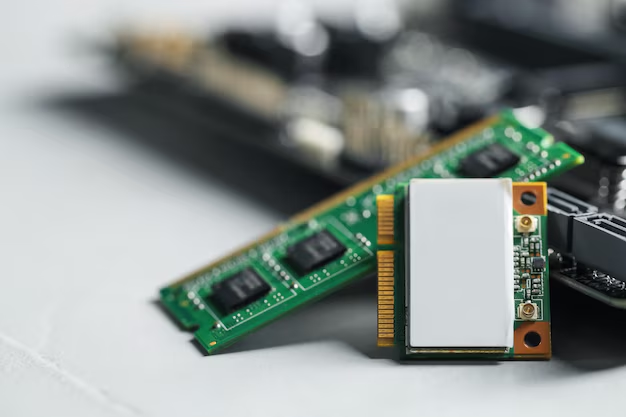
Before jumping into the how-to, it's crucial to understand what kind of memory we're discussing. Typically, when we refer to memory in laptops, we mean either the Random Access Memory (RAM) or the storage memory (solid-state drive or hard drive). Both components are key players in determining a laptop's performance:
- RAM: This is your laptop's short-term memory, storing the data your device is actively using so it can be accessed quickly. More RAM means your laptop can handle more tasks at once.
- Storage Memory (SSD/HDD): This is the long-term memory where your files, applications, and system data reside. Upgrading storage can significantly increase your data capacity.
Preparation: Assessing Your Current Setup
Before transferring memory, take stock of your current setup and requirements. Consider these key tasks:
- Identify Compatibility: Check both laptops for compatible RAM and storage modules. Consult their manuals for supported memory types.
- Back Up Data: Ensure all critical data is backed up before beginning the transfer process to avoid data loss.
- Gather Tools: You may need screwdrivers, an anti-static wristband, and, potentially, an external enclosure for data drives.
How to Transfer RAM from One Laptop to Another
H2: RAM Transfer: The Process Unveiled
H3: Step 1: Check Compatibility
Not all RAM modules are created equal, and not all are compatible across different laptops. Start by identifying the RAM type (DDR#, speed, and capacity) supported by your target laptop. Check the laptop's specs online or in the user manual to avoid any mismatch.
H3: Step 2: Power Down and Open Up
- Shut down both laptops fully and disconnect them from power sources.
- Remove the back panel of each device carefully to access the RAM slots. This process usually requires a small screwdriver.
H3: Step 3: Swap the RAM
- Wear an anti-static wristband to prevent static damage.
- Carefully remove the RAM module from the original laptop by pushing the levers on either side.
- Insert the RAM into the target laptop, ensuring it clicks into place securely.
H3: Step 4: Power and Test
- Replace the back panel and power on the target laptop.
- Check the system settings to confirm that the new RAM is recognized and functioning properly.
Transferring Storage: SSDs and HDDs
H2: Expand Your Horizons: Upgrading Storage
H3: Step 1: Choose Your Strategy
Decide whether you want to replace the existing drive or add another. Modern laptops often support additional storage devices or can have existing ones upgraded.
H3: Step 2: Backup and Prepare
Backup important data from both laptops. Ensuring you have a copy of everything crucial is paramount before altering any physical or digital components.
H3: Step 3: Removal and Installation
- Access the storage drive bay in each device by unscrewing panels.
- Remove the existing drive (SSD or HDD) by disconnecting any cables or unfastening any screws.
- Insert the new drive into the target laptop.
H3: Step 4: Cloning the Drive
To transfer the contents of one drive to another:
- Use drive cloning software to replicate the original drive onto the new one.
- Boot the laptop from the cloned drive to ensure everything functions as expected.
Summary Table: Key Steps for Transferring Memory
| Task | RAM Transfer | Storage Transfer |
|---|---|---|
| Identify Compatibility | Check RAM type (DDR, speed, capacity) | Ensure drive size and type compatibility |
| Pre-Transfer Backup | Backup important files | Use backup software for complete copies |
| Removal & Installation | Access RAM slots and swap modules | Replace or add drives to available slots |
| Testing | Verify RAM in system properties | Boot from cloned drive to confirm transfer |
Optimizing the Process: Tools and Tips
H2: Essential Tools for a Hassle-free Transfer
Having the right tools on hand can simplify the process significantly:
- Screwdriver Set: Essential for removing laptop panels.
- Anti-static Wristband: Prevents damaging components with static electricity.
- External Drive Enclosure: Useful for cloning storage drives to new devices.
Post-Transfer: Maximizing Performance and Capacity
Once the transfer is complete, it’s time to optimize your system for newfound performance benefits:
- Update System Drivers: Ensure that the latest drivers are installed for optimal hardware functionality.
- Run Performance Checks: Use benchmarking software to verify improvements in speed and capacity.
- Manage Storage Effectively: Organize files and remove unnecessary data to maximize your device's potential.
Troubleshooting Common Issues
Occasionally, the transfer might not go as planned. Here’s how to handle potential hiccups:
- RAM Not Detected: Double-check for module seating in the slot correctly and verify compatibility.
- Drive Errors: If a new drive isn’t recognized, reconnect cables and ensure all screws are properly fastened.
- Boot Issues: If the new drive doesn’t boot, verify that the cloning process was completed successfully.
Remember: Safety and Security First 🔐
- Always back up data before major hardware changes.
- Maintain an anti-static environment to prevent component damage.
Wrap-Up Insight
Transferring memory can breathe new life into your devices, whether reallocating unused RAM or expanding storage for grander capacities. By undertaking this task with care and precision, you're maximizing your technology's longevity and allowing it to adapt to your evolving needs. As you navigate these steps, you're not just updating hardware; you're crafting a more efficient, capable computing experience tailored just for you. 🌟
With this knowledge in hand, you are now equipped with the confidence and capability to harness one of technology's most valuable efficiencies. Feel empowered to practice, explore, and maybe even experiment—each transfer is a step towards a personalized technological mastery.
Related Topics
- How Can I Transfer Data From One Laptop To Another
- How Can I Transfer Domain To Godaddy
- How Can I Transfer My Calls To Another Phone
- How Can I Transfer Pdf To Word
- How Can We Transfer Data From One Laptop To Another
- How Can You Transfer Data From One Phone To Another
- How Can You Transfer Emails From One Account To Another
- How Can You Transfer Vhs Tapes To Dvd
- How Do I Transfer a Prescription From Walgreens To Cvs
- How Do I Transfer Data From Ipad To Ipad